What we can see, and what we can’t.
Roomtide is designed so that your files, their names and the keys that unlock them are encrypted on your Mac before upload. Here is how, and where the limits are. We’re arranging an independent security review and will publish the report here.
Encrypted on your Mac
Everything below is encrypted with Apple’s CryptoKit before it leaves your Mac. The design uses only standard building blocks: AES-256-GCM, HKDF-SHA256, HPKE and P-256 keys. No home-made cryptography.
Encrypted before upload
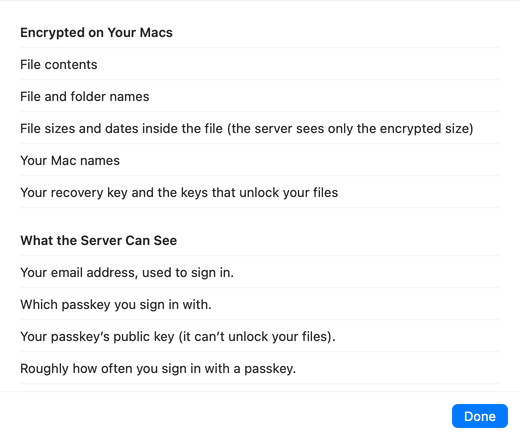
- File contentsEvery file is split into chunks, each encrypted with AES-256-GCM under a key made for that version of the file.
- File and folder namesSealed on your Mac. Names are padded so the server learns only a rough length.
- Sizes and dates inside the fileThe real size and modified date travel encrypted; the server sees only the encrypted size.
- Your Macs’ namesShown to you in Settings, sealed for everyone else.
- Your keysThe keys that unlock your files never reach us unencrypted. The recovery key never reaches us at all.
What our servers can see
To store and sync encrypted files, some information is unavoidably visible to us and to our storage provider. This is the complete list, in plain words. The field-by-field version is in the privacy policy.
Your account
- Your email address, and when sign-in codes are sent and used.
- Which passkey you sign in with, its public key, and roughly how often you use it.
- The IP address and app and macOS version of each session.
The shape of your drive
- How many files and folders you have, and which items sit in the same folder.
- The encrypted size of each file, which is close to its real size.
- When files are uploaded, renamed, moved or deleted, and which of your Macs did it.
- Whether two names in the same folder are equal, and each name’s length in 32-byte steps.
- Which parts of a file are downloaded, for example which minutes of a video are played.
Your Macs
- How many Macs are on the account, their public keys, and when each was added or removed.
Billing
- Your plan and payment status, and your Polar customer ID. Polar holds your card details; we never see them.
Only if you send it
- What you type in Send Feedback, and app details if you include them.
- Crash reports, if you turn them on in Settings. They are cleaned on your Mac first: no file names, paths or account link.
If our servers were compromised
We plan for the worst case: someone who controls our servers, database, logs and storage. The design aims to keep your files and names unreadable to them, and to make tampering detectable. It cannot stop them from refusing service.
Someone in control of our servers
- Can’t readFile contents, names or metadata, or obtain the keys that unlock them.
- Can’t quietly swapYour Macs reject a file replaced with another file’s data, an older version passed off as newer, or a Mac added to your account without your approval.
- CanWithhold or delete data, refuse requests, and observe everything listed above. Show an older version to a Mac that never saw the newer one.
On your Mac
Files you open are stored on your Mac as normal, readable files, so Finder and your apps can use them. Turn on FileVault to protect them.
Keys and local data
- Device keysCreated in your Mac’s Secure Enclave and can’t be exported.
- Account keysIn your Keychain, on this Mac only, never synced elsewhere.
- The app’s databaseNames and paths in it are sealed with a key held on this Mac.
- Out of scopeSomeone using your unlocked Mac, or a compromise of macOS itself.
Recovery, and why we can’t reset it
Signing in proves who you are; it does not unlock your files. Your files can be unlocked only by one of your Macs or your recovery key.
If you lose the recovery key and every Mac, your files are gone for good. Nobody, including us, can decrypt them.
Adding and removing Macs
- On the new Mac, sign in and ask to join.
- On a Mac you already use, compare the code shown on both screens and approve.
- Remove a lost Mac in Settings. Your account’s keys change, so it can’t read anything added afterwards.